 COME
COMEDownload and Install COME APK: Steps for Android
Use this page to move from the COME product entry to a completed Android installation. The button opens the COME website; it does not claim that a file has already been downloaded. If you already have the app, keep the working copy and account access available while checking an update.
Prepare for the task you are doing
Android reports installation complete, and you are opening COME for the first time on this phone. Keep the exact Android result before choosing a repair.
App and release information
The download listing checked on 22 September 2026 labels COME as version v1.13 with a download-size label of 3.1MB. These are listing values rather than a measurement of the package on your phone. Read the release information accompanying the file you are offered. The download size is not the total space the app will use after installation.
Android version, application version and package identity are different fields. Do not treat a display name as a technical package identifier. Likewise, the date on this guide is not an app release date. If the product's current requirements differ from an old screenshot or article, investigate the current information before proceeding.
Before starting the transfer
Use a stable connection and enough battery to finish. Check available storage through Android's normal storage view. Allow room for the downloaded package and installation working space without assuming a fixed multiplier. If you already have COME, note the installed version where Android shows it and establish how you sign into the intended account.
Keep Google Play Protect enabled. A source-install permission is different from a security assessment of a file. If the phone is managed by an employer or school, follow the administrator's installation policy instead of trying to bypass it. Menu wording can vary by Android version and manufacturer.
Complete the installation in order
- Open the COME product entry. Expect a product web page; read the destination and choose its relevant Android download option.
- Start one APK transfer. Open the browser's downloads view and wait for completion. A paused or failed item is not ready for installation.
- Locate the completed file. Check that it is the expected Android package rather than an image or saved web page. Renaming a file does not convert it into an APK.
- Open the file with Android's installer. Read the product information and any warning. If a source permission appears, identify the browser or file manager requesting it and understand the choice before continuing.
- Follow the installer result. If it succeeds, open the intended app. If it fails, keep the exact error and use the matching branch below instead of immediately repeating the transfer.
- Confirm first launch separately from sign-in. Let the initial screen load, then use the product's actual new-user or existing-account route as appropriate. Installation alone does not prove account access.
First launch and your existing account
On a successful first launch, establish that you reached the expected product. The COME interface includes Explore, Casino, Fantasy, Rummy and Sports. The profile menu contains Account, Game History, Settings and Contact CS. Use these labels to orient yourself; do not read an account balance in a screenshot as your own.
If the app opens but sign-in fails, you have moved beyond the installation stage. A forgotten password, a missing verification message and a connection failure require different descriptions. Preserve the working installation while using the relevant help topic. Creating a second account or clearing app data is not a general recovery technique.
Updates start with the working app
COME Settings shows Check Update. Use the current control to find release information, then compare it with the installed version where available. The adjacent Language and audio switches are unrelated to release compatibility. A Latest Version label inside a screenshot does not report the state of your device.
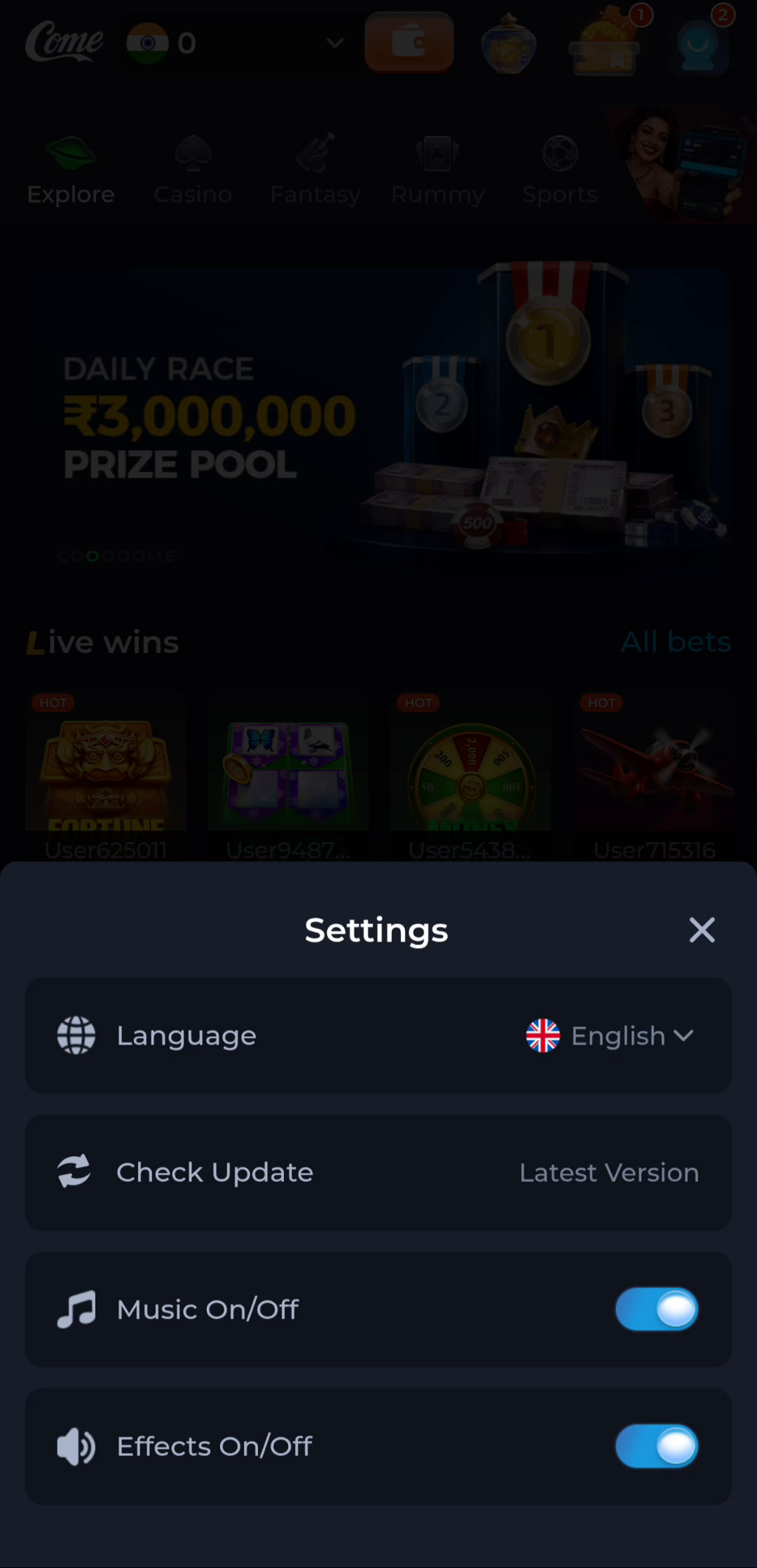
If an update package is offered, let it finish transferring and follow Android's prompts. Preserve any package or signing conflict rather than uninstalling the existing app to force the new file through. After a successful update, open COME and confirm the intended account and relevant settings. Do not assume every local preference transfers automatically.
If something stops working
No completed file: inspect the browser's transfer state and source download control. If the connection failed, restore it before making another attempt. Avoid collecting multiple partial copies.
Storage warning: inspect Android's available space and remove only recognised, unneeded files, with backups where appropriate. Do not clear the app's data simply to see whether the message changes.
Incompatible or conflicting package: compare the device requirements, installed app and offered release. Keep the exact error and stop when the product identity or update relationship is unclear.
App opens but cannot load: compare general connectivity and the affected section. COME's General help includes Network Issue. A connection symptom after launch is not proof that the installer is damaged.
Security warning or blocked installation: keep device protections active and investigate the source and warning. Do not follow instructions that require disabling protection or sending passwords and OTPs to unlock a download.
Device and source questions
An APK cannot be installed directly as an iPhone or iPad app. A Windows or macOS computer also does not natively install it. Browser access and separately supported platform versions are different options; use only the route actually documented by the product.
An app-store result with a similar name does not automatically identify the same COME product. Read its publisher and product information. For older versions, do not assume a random archive is compatible or safe; an update failure should first be understood from its exact message.
Get help with the specific stage
Keep the exact Android result before choosing a repair. Android reports installation complete, and you are opening COME for the first time on this phone.
COME Installer Results: Opening a new installation
Locate the stalled stage before testing another connection. Android reports installation complete, and you are opening COME for the first time on this phone.
COME Connection Checks: Opening a new installation
Keep the intended account available while changing a device or app. Android reports installation complete, and you are opening COME for the first time on this phone.
COME Account Continuity: Opening a new installation
Return to the COME app overview
Continue when your device, intended source and next step are clear. The app entry below opens the product website, where the relevant Android option can be selected.